
You can print from the library PCs, computer labs, personal computers connected to the wireless network, and mobile devices
NB! Print jobs that are not printed will be deleted after 72 hours.
Install printer on your own PC/Mac
- Go to the uniFLOW Online website: https://nih.eu.uniflowonline.com/
- Select “Continue with NIH Microsoft 365” and log in using your username@nih.no (the same username and password as used for Canvas)
- Go to "Start printing" in the menu on the left. Download the software for PC or Mac and install it.
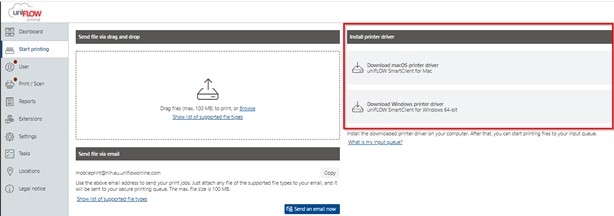
The software requires a restart to work. Afterwards, you will find "NIH-print uniFLOW" in the list of available printers.
- To activate the software/client, you must register with your Office 365 account at NIH. When you open, for example, Word to print (and select NIH-print uniFLOW Online as the printer), you will get the following window:
Select "Continue with NIH 365" and log in with username@nih.no. 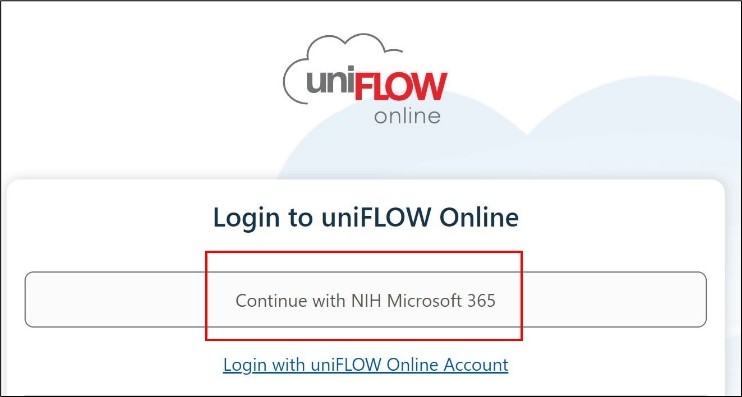
A message will appear in your browser indicating that the installation is nearly complete, followed by another confirming completion. Find the following image (it may be behind your browser). Click Start.
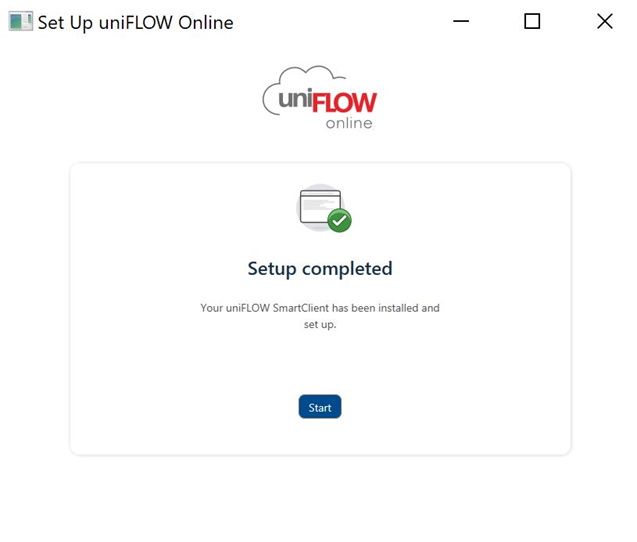
If the print job is not in the queue, try printing again.
Check your print queue
1- Log in to the print portal: https://nih.eu.uniflowonline.com
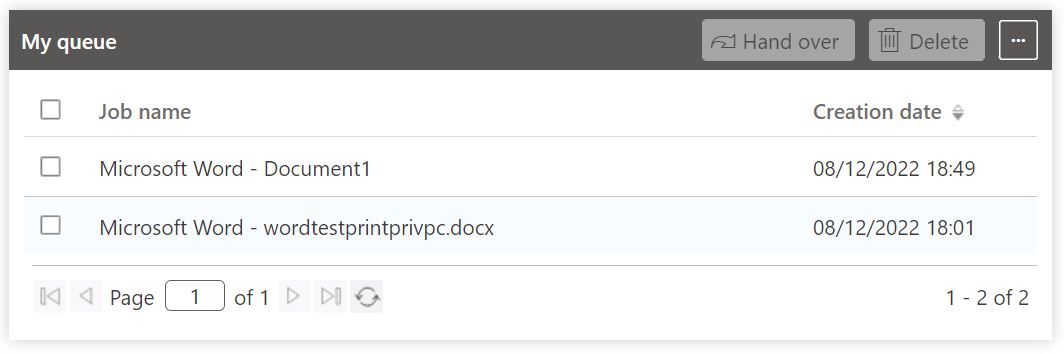
2- Select Dashboard in the left-hand menu. At the bottom right of the page, you will see your print queue.
Activating your student card for printing
To activate your student card for printing, you must link the card to your NIH account.
Do this by placing your access card on the printer, then entering your PIN code. The card reader is located to the right of the printer’s display/screen.
If you have not received a PIN code in your NIH email, follow the next step.
If you do not have a PIN code
- Go to the uniFLOW Online website: https://nih.eu.uniflowonline.com/
- Select “Continue with NIH Microsoft 365” and log in with the same username and password as in Canvas (username@nih.no).
- Select Dashboard in the menu on the left, then Identities.
- Click the … menu to the right of the PIN line.
- Select "Show PIN code".
Want to print?
You can:
- Print from your own Mac/laptop – you must install the printer.
Instructions can be found at the printers in the library.
or
- Print from the student PCs in the library.
For both options:
- Open the file you want to print and choose print. The printer is called NIH-print uniFLOW.
Example from Word:
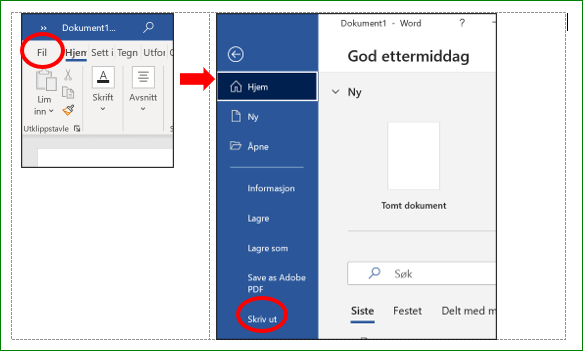
- You must then log in to the printer with your student card, choose the correct file, and print.
Double-sided and/or colour? Make your selection directly on the printer.
First time printing? You must activate your student card for printing. Instructions can be found at the printers in the library.
Student printers
Student printers are located at:
- The Library
- Master Reading Room, Building F
Printing quota and prices
At the beginning of each academic year, all students receive the following printing quota:
- Bachelor students: NOK 150
- Master students: NOK 200
Beyond this, you can purchase additional prints.
Prices per print/copy
|
Print/Copy |
Black & White |
Colour |
|
A4 single-sided |
NOK 0.60 |
NOK 2.00 |
|
A4 double-sided |
NOK 0.90 |
NOK 3.70 |
|
A3 single-sided |
NOK 1.20 |
NOK 4.00 |
|
A3 double-sided |
NOK 2.10 |
NOK 7.70 |
Pay for extra printing quota / Check printing quota
- Log in to the print portal: https://nih.eu.uniflowonline.com
- Select Extensions in the menu on the left.
- Select Budgets.
For more info see HERE.