Remember to be logged into the VPN client. if you are outside the school’s network; otherwise, you will not be able to access electronic articles or e-books we have access to.
Do you have questions about Oria? Contact the library by email library@nih.no.
Simple search
Enter one or more words in the search box. If you enter multiple words, they will automatically be combined with AND. Use the asterisk * to include both singular and plural forms and other endings of the words:

Put quotation marks around terms that consist of two or more words to indicate that the words must be next to each other:

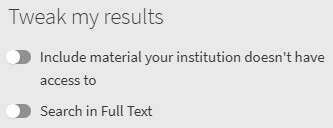
On the right side of the results list, you can narrow down your search under Tweak my results:
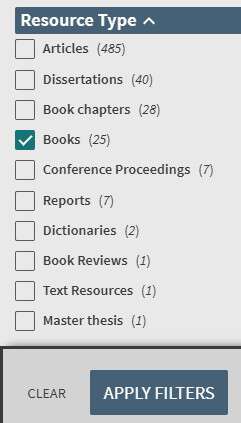
For example, you can select the material type you want. Hover over the material you want to narrow down on, and check the boxes that appear. Click Apply filters:
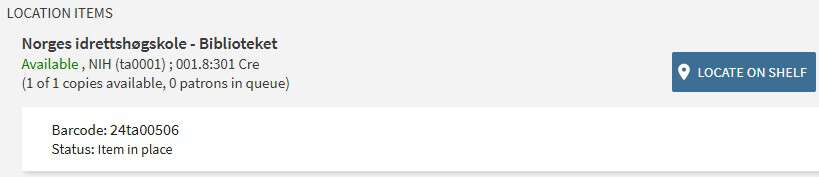
Under each entry, the status of whether the book is available for loan is indicated. If it says Available at Norges idrettshøgskole, the book should be in place and available for borrowing. Click on the title to locate the book in the library:

On the next page, you will see how many copies are available. You can see this right under the yellow field. Click Locate on shelf to find the shelf the book is on in the library:
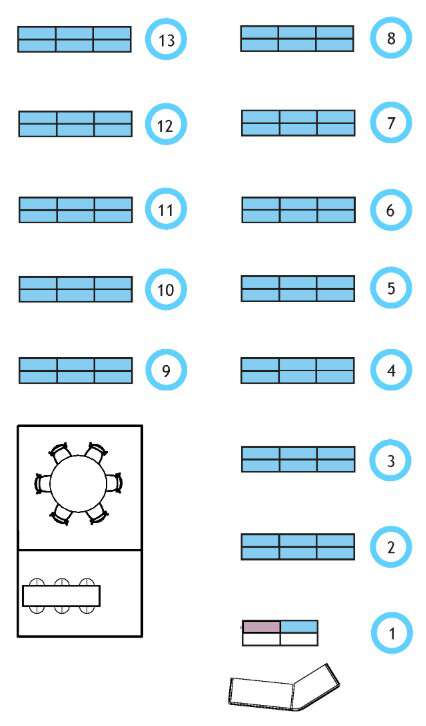
You will see a map of the shelves. The red area indicates the shelf the book is located on:
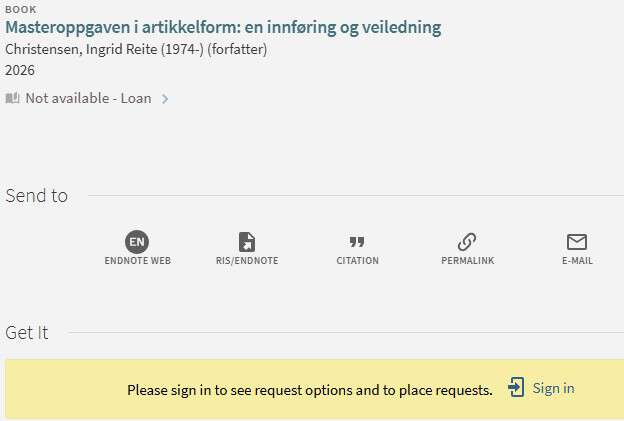
If it says Not available - Loan, it is possible to place yourself on a waiting list. Click on Sign in under Get It:
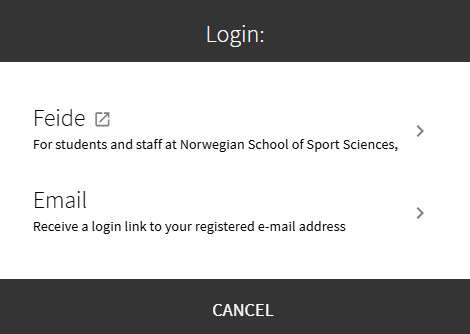
Select Feide and log in with the same username and password as for Canvas:
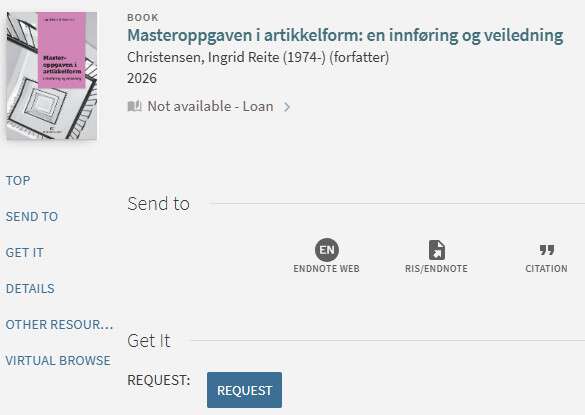
Click on Request to place yourself on the waiting list:
Advanced search
Advanced search can be useful for combining searches on multiple topics. It provides more options for combinations and adjustments. Click on Advanced Search to the right of the search box:

You can choose whether you want to search in NIH library or Norwegian Academic Libraries from the dropdown menu next to Search Scope.
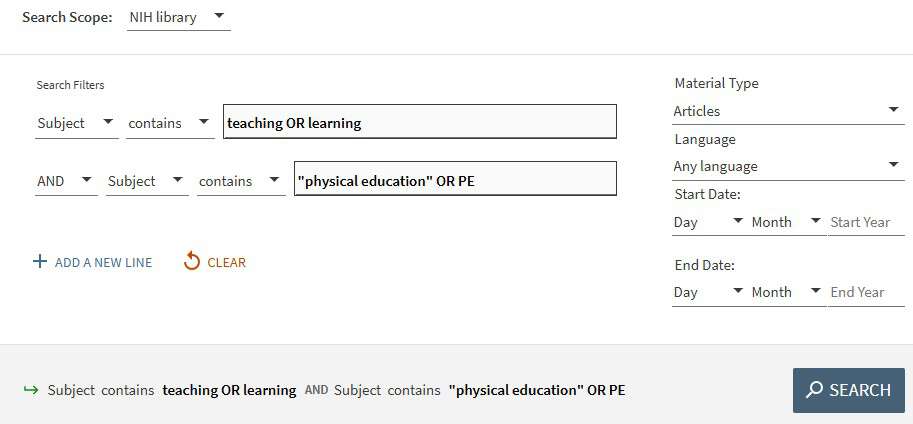
In the dropdown menu in front of the search box, you can choose fields to search in. In the image below, Subject is selected.
You can select material type, language, and publication year.
You can search in both Norwegian and English.
Remember to write OR in uppercase letters.
In this search, it is limited to the material type Articles:
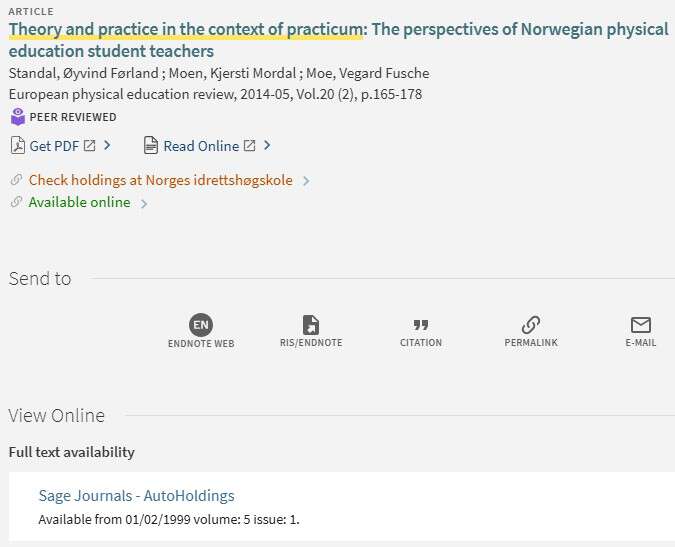
If you find an article you want to read, you can check if it is available online. In this example, it says Available online under the entry. This means you can read the article at NIH's network. Click on the link under View Online to view the article in full text:
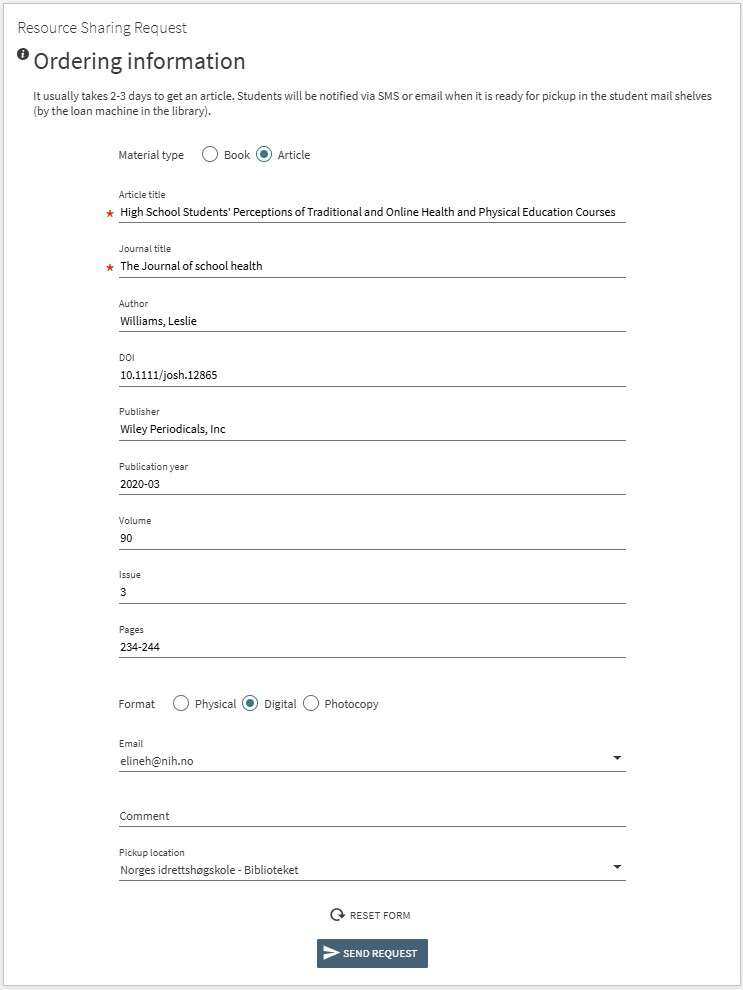
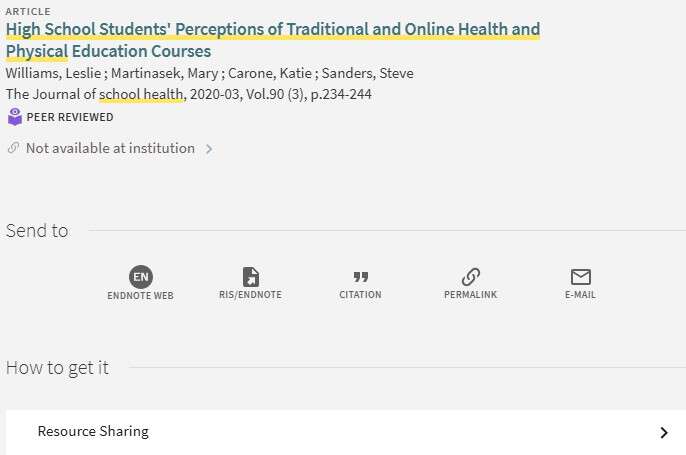
If you find an article that says Not available at institution, the article is not available online at NIH's network. You can then send a request to the library so that we can obtain the article for you. Click on Resource Sharing under How to get it to request the article (you have to be logged in to get this option - see under Simple Search):
You will see a pre-filled form. Fill in any comments, check the box for Article, and click the Send Request-button: