Installation Guide
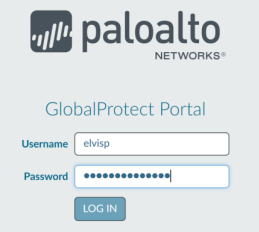
- Go GlobalProtect Portal
- Enter your NIH username without the domain name and password. This is the same one you use when logging into NIH-PCs. (See picture on the right.)
- In the next window, choose a driver that suits your PC. (See picture on the right.) Click on the Download link that matches your operating system. For most people, this is "Download Windows 64 bit GlobalProtect agent". If you click on the wrong link, you will get an error message when trying to install.
It is not necessary to save the password if you are asked about this. - A pop-up will appear asking you "What do you want to do: Run, Save or Cancel?" Choose Run. The appearance and where this appear varies in different browsers.
- The installation program will now start. Click Next in the next three dialog boxes without making any changes.
- Setup Wizard, click "Next" and Select Installation Folder, click "Next".
- Confirm Installation, click "Next"
- After a little while, a dialog box with "Installation Complete" should appear and the installation is finished. Press Close.
- The program should now open automatically. Under "Please enter your portal address" write: gpvpn.nih.no, then press Connect.
If you have a newer version of macOS (such as High Sierra), you will have to go through some extra steps (See below). If not, you can go directly to point 8. If you are asked to approve a certificate for gpvpn.nih.no at any point, you accept this.
For macOS
In the dialog box "System Extension Blocked", choose Open Security Preferences. Choose Allow at "System software from the developer "Palo Alto Networks" was blocked from loading": Security and Privacy. Under General, click on "Allow".
- In the dialog box "Sign In: Enter Username and Password" enter NIH username, without domain name, and NIH password.
- Dialog box with "Connected: You are securely connected to the corporate network". Then you are connected to VPN and can use NIH's resources.
- At the bottom right of the screen (on the system line), you will have a globe icon that is colored with a checkmark showing if you are connected and a globe icon in gray showing that you are disconnected.
Need help?
Send an email to student-itsupport@nih.no or call 23 26 20 02.
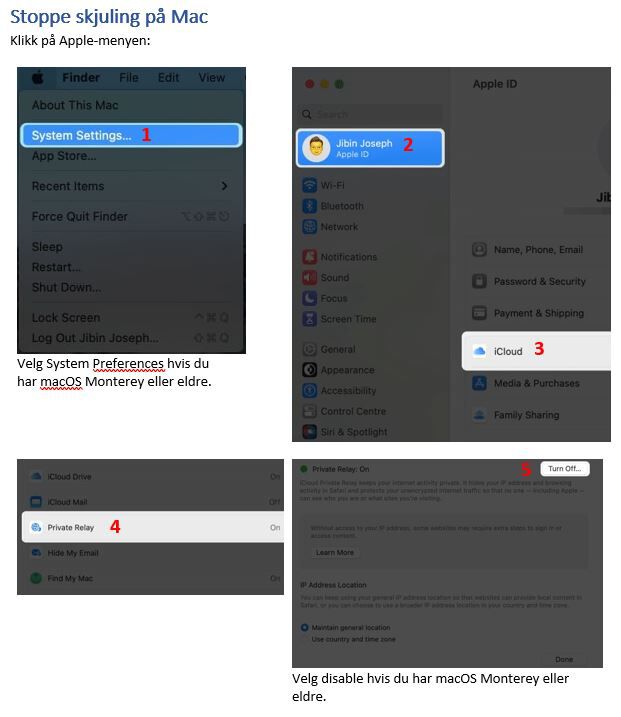
Issues with Safari and NIH's Electronic Services?
When using Apple's browser, Safari, you may experience that your IP address is automatically hidden. This prevents access to NIH's electronic services (e.g., databases, journals, etc.).