
If you don't find the information you need below, you can visit Zotero's official support page.
Questions? Contact Karianne Hasledalen at the Library.
How to install
Zotero is downloaded from the website Zotero.org. The program can be downloaded for Windows, macOS, and iOS. Use browsers such as Chrome, Edge, Firefox, or Safari.
Also, download Zotero Connector, which is a browser extension used to import documents into your Zotero library. Once activated, it appears as an extension next to the URL field. (No download is needed when using a Mac, but it must be activated in Safari).
Zotero Account: Create an account to use the Zotero web library. Select Login at the top of the website Zotero.org, and click on Register. Enter a username, email, and password. The email address can be private. This library can be used on its own or to access the Zotero desktop library online.
Settings before use
Click on Edit in the menu at the top of the page, and select Settings.
Under General, choose the language, appearance, and handling of PDFs.
Sync: Used to connect the Zotero online account with Zotero desktop. Enter the username and password from your Zotero online account under Data Syncing here.
Export: Here you can select the reference style to be used if you copy references directly from Zotero as text.
Cite: A list of reference styles used in, for example, Word. Newly downloaded styles can be saved here. It is also possible to edit styles and install plugins for Word and LibreOffice.
Collect references to the library
References can be imported in several ways:
Zotero Connector
When the Connector is installed, it can be used to import references into the library. The extension will appear next to the URL field and will have a different appearance depending on the website you are visiting. It uses different icons for books, articles, and websites. Click on the Connector to import the reference. In the pop-up box, select the collection where the reference should be added. The box also shows any attachments downloaded with the reference, such as PDFs. Finish by clicking outside the box.
Go to Zotero and check that the reference has been correctly added to the library. References should always be reviewed for potential errors.
Zotero connector symbol for a book in the browser:
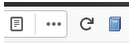
When searching databases such as Web of Science, PubMed, and SportDiscus, you can import multiple references at once. The Zotero Connector extension will appear as a folder icon:

Identifier (Magic Wand)
In the toolbar above the references, click on the magic wand icon.
This can be used to quickly add a reference using identifiers such as DOI, ISBN, and PMID:

PDF from Your Computer
Saved PDFs of journal articles can be transferred into the library so that a reference is created. Drag and drop the file into Zotero. This applies to PDFs that have a DOI. PDFs without a DOI will be added as attachments, and the reference will need to be created manually.
Creating a Reference Manually
Use the New Item icon in the toolbar above the references. Select the correct source/item type (book, article, etc.). If the correct source type (e.g., a website) is not available, you can choose another one and modify it later.
Create collections in the library
All references are stored in the main collection called My Library. If you want to organize your references into different topics, you can create new collections under My Library.
Click on the icon below My Library at the top left.
Enter the name of the collection and click Create Collection.
The library's interface
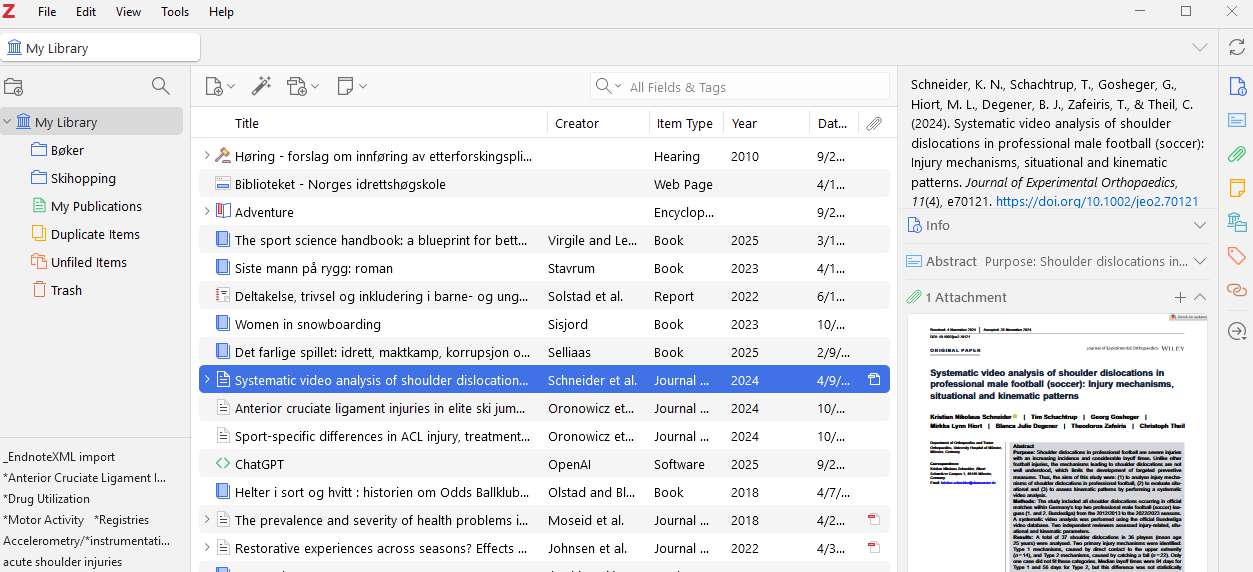
The library's interface consists of three panes, a menu bar at the top, and a toolbar above the reference list.
The left pane shows the collections in the library. Here, you can create new collections, find duplicates, and delete references.
The middle pane displays a list of imported references.
The right pane shows information about each reference. Click on a reference to view its details. Each field can be edited here, such as correcting an organization name.
The toolbar above the references allows you to manually add references, add references based on an identifier (magic wand), and add attachments.
Zotero Word Plugin
When Zotero is installed on your computer, a Zotero Plugin should automatically be added to the toolbar in Word. If this does not happen automatically, it can be installed via Preferences in Zotero. On the toolbar, you will find the following buttons:
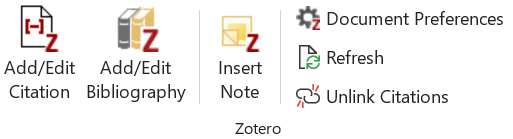
Add/Edit Citation – Used to insert references into the text. It is also used to edit references. Search for the reference in the red box that appears. You can search for multiple references to include in the same citation. Press Enter when all references have been selected.
Add/Edit Bibliography – Used to insert a reference list at the bottom of the document. The reference list is not created automatically when inserting citations into the text.
Document Preferences – Here, you can select the reference style (e.g., APA). You can also choose the language of the style. The first time Add/Edit Citation is used in a new document, this will open automatically.
Refresh – Used to update the connection between the Zotero library and the Word document. When references are modified or corrected in Zotero, this button must be used to ensure that citations in the text and the reference list are updated.
Unlink Citations – Removes the connection between Zotero and the Word document. Use this when you want to write and edit freely in the document without Zotero codes overriding. Note that you cannot insert citations into the document after selecting Unlink Citations, so remember to save a copy of the document with the connection intact.
Insert citation in a document
Place the cursor where you want to insert the citation in the document. Click on the Add/Edit Citation icon.
If this is the first citation being inserted into the document, a box will first appear where you select the reference style and language. After that, a box will appear where you can search for the reference.
Select the reference that appears in the blue field and press Enter to insert the citation into the text.
Insert a bibliography in a document
Place the cursor where you want to insert the bibliography in the document. Click on the Add/Edit Bibliography icon. The next time you insert a citation, it will automatically be added to the bibliography as well.
The bibliography may not always appear as it should according to the chosen style.
For example, the line spacing might be too large, or the indentation may be incorrect. Some of these issues can be resolved by changing the style. In Zotero, you can download additional styles under Edit -> Settings -> Cite -> Get additional styles.
You can also manually correct errors in the bibliography after you have used Unlink Citations to disconnect Zotero from the document.
Insert a citation with page numbers
When citing from longer texts, such as books, it is advisable to include page numbers in the parentheses.
Click on Add/Edit Citation to insert the reference.
Click on the blue field to add the reference to the search field.
Then, click inside the search field to open a box where you can enter the page numbers.
Press Enter.
Insert a citation without the author's name
Sometimes, you may mention the author’s name in the text and only need the year of the reference in parentheses. This is called a narrative citation.
Highlight the reference you want to modify and click on Add/Edit Citation. In the red box that appears, click on the citation itself to open an editing window.
Remove the author’s name by checking the box labeled Omit Author.